Demo data note: Screenshots in these docs use representative demo data. Do not use real customer records, secrets, payment keys, or private documents in public demos.
Key capabilities
Modern browser guidance keeps demos consistent across Edge, Chrome, Firefox, and Safari.
Demo-data notes help representatives avoid real customer data in screenshots and public calls.
Gated modules and detail routes are explained in user-facing terms so missing pages are not mistaken for product defects.
Support handoff steps capture useful context without passwords, tokens, local logs, or private implementation details.
Support handoff checklist
- Record the organization, user role, module, screen name, approximate time, and business impact.
- Capture a screenshot with sensitive information hidden or replaced by demo data.
- Write the exact steps taken before the issue appeared and whether it repeats after refresh/sign-in.
- Note whether the screen uses an add-on, a selected record, or a demo dataset that may not be enabled in every environment.
- Never send passwords, API keys, payment provider secrets, customer private documents, raw logs, or browser storage contents in a support handoff.
Browser requirements
Use a current version of Microsoft Edge, Google Chrome, Mozilla Firefox, or Safari. Enable JavaScript, cookies, and standard image loading. A laptop or desktop viewport is recommended for representative demos.
Demo and data expectations
Screenshots in this package use demo data. Empty states can appear in a fresh tenant until sample customers, vendors, products, contracts, rentals, and transactions are created.
Gated and detail pages
Some screens need a selected record, installed add-on, or separate kiosk application. The public screenshot set focuses on representative-safe list, dashboard, setup, and workflow screens.
Common checks
If a page appears unavailable, confirm the user is signed in, has the right role, the add-on is enabled, the browser is current, and the required demo record exists.
Screenshots
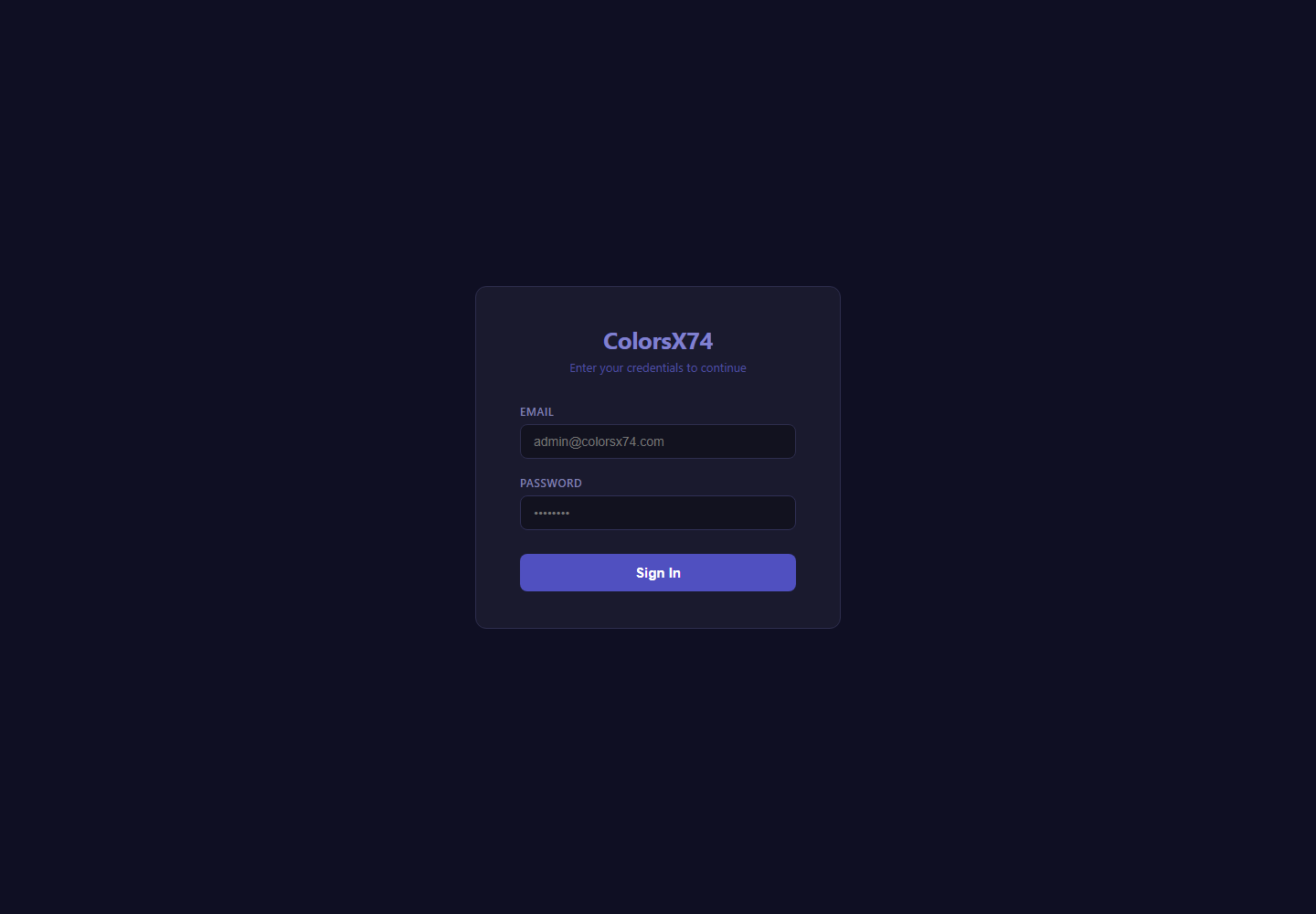
Use sign-in to explain browser and account readiness.
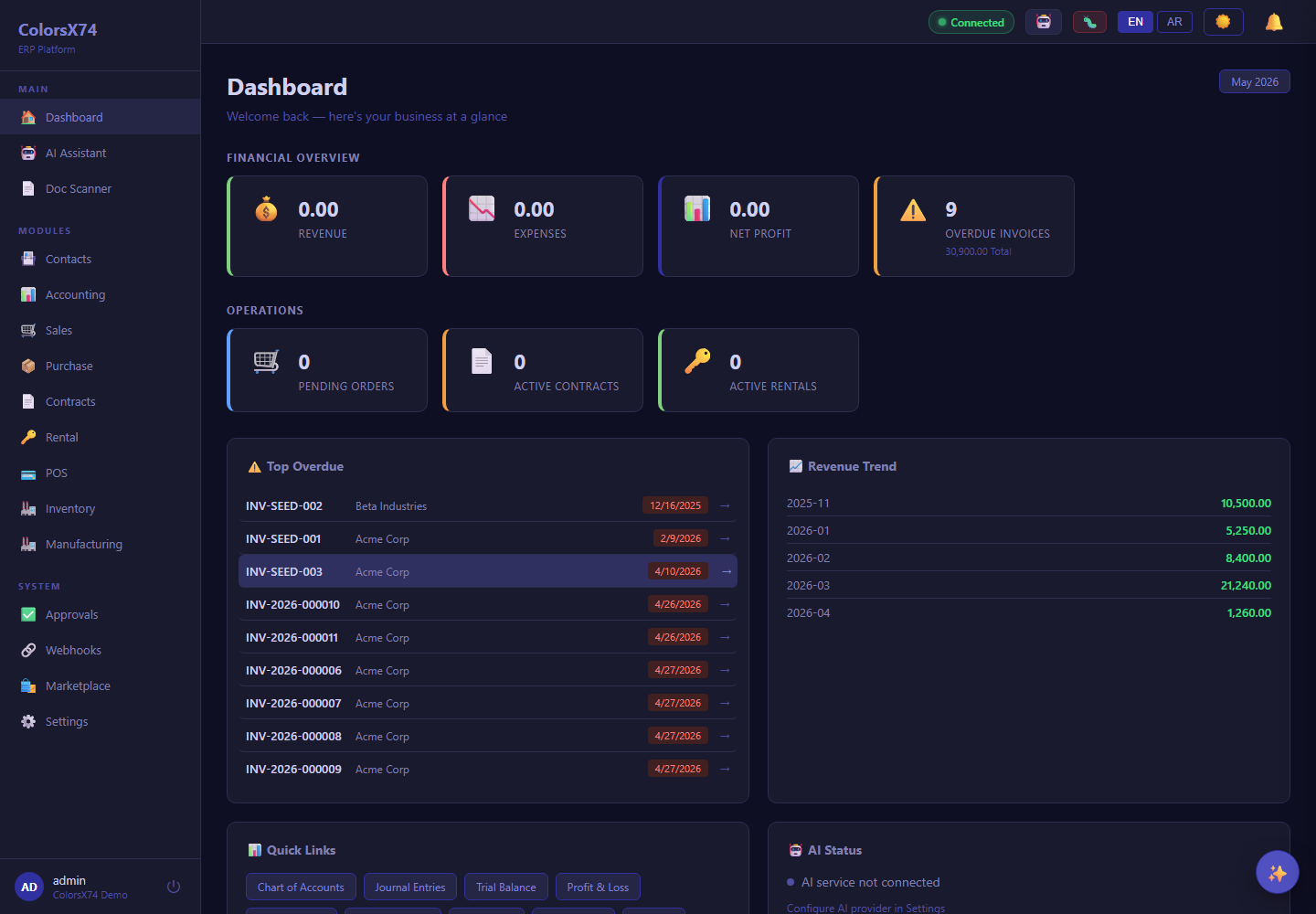
Use dashboard state to confirm the user reached the portal.
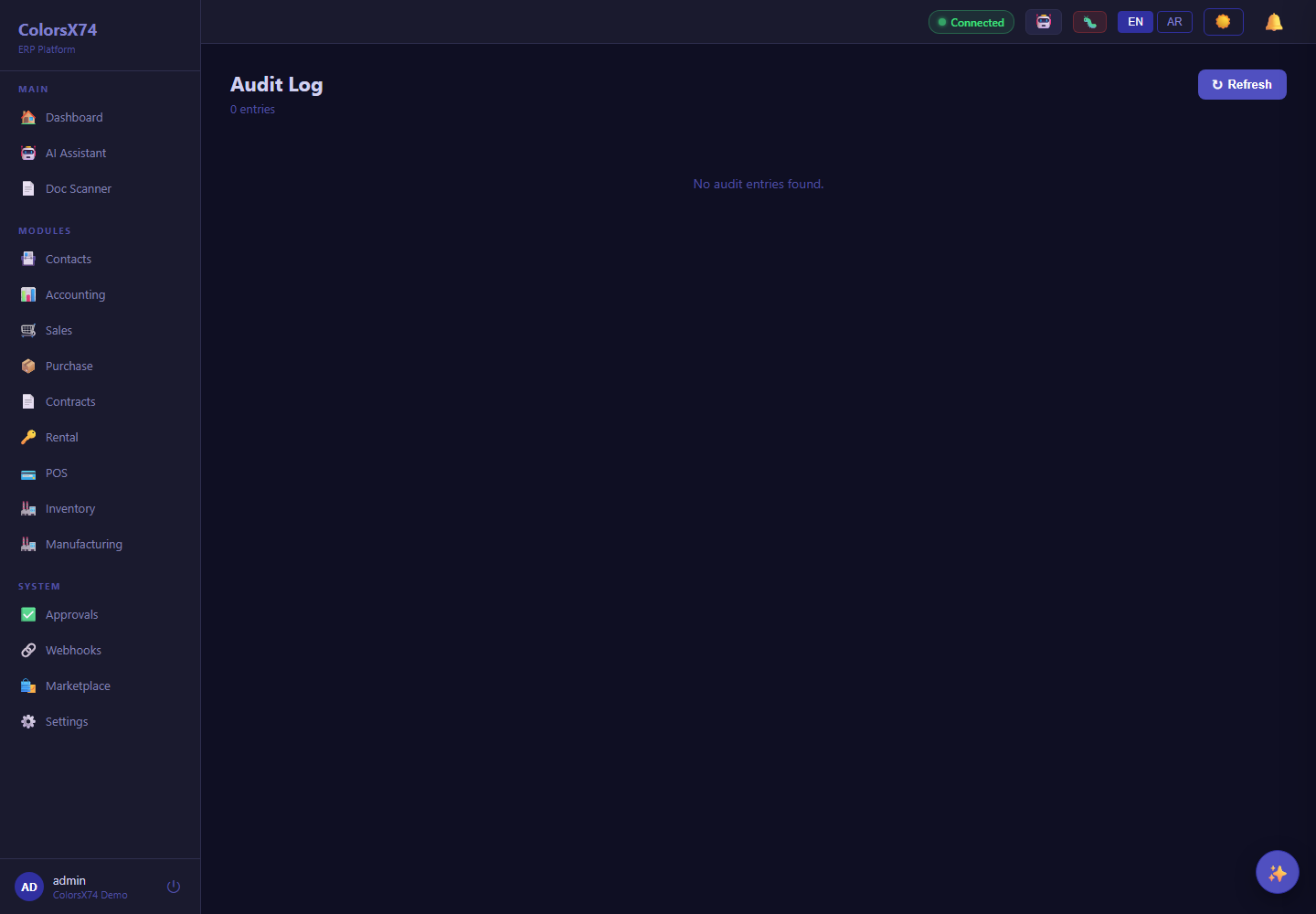
Use audit to discuss traceability when support needs context.
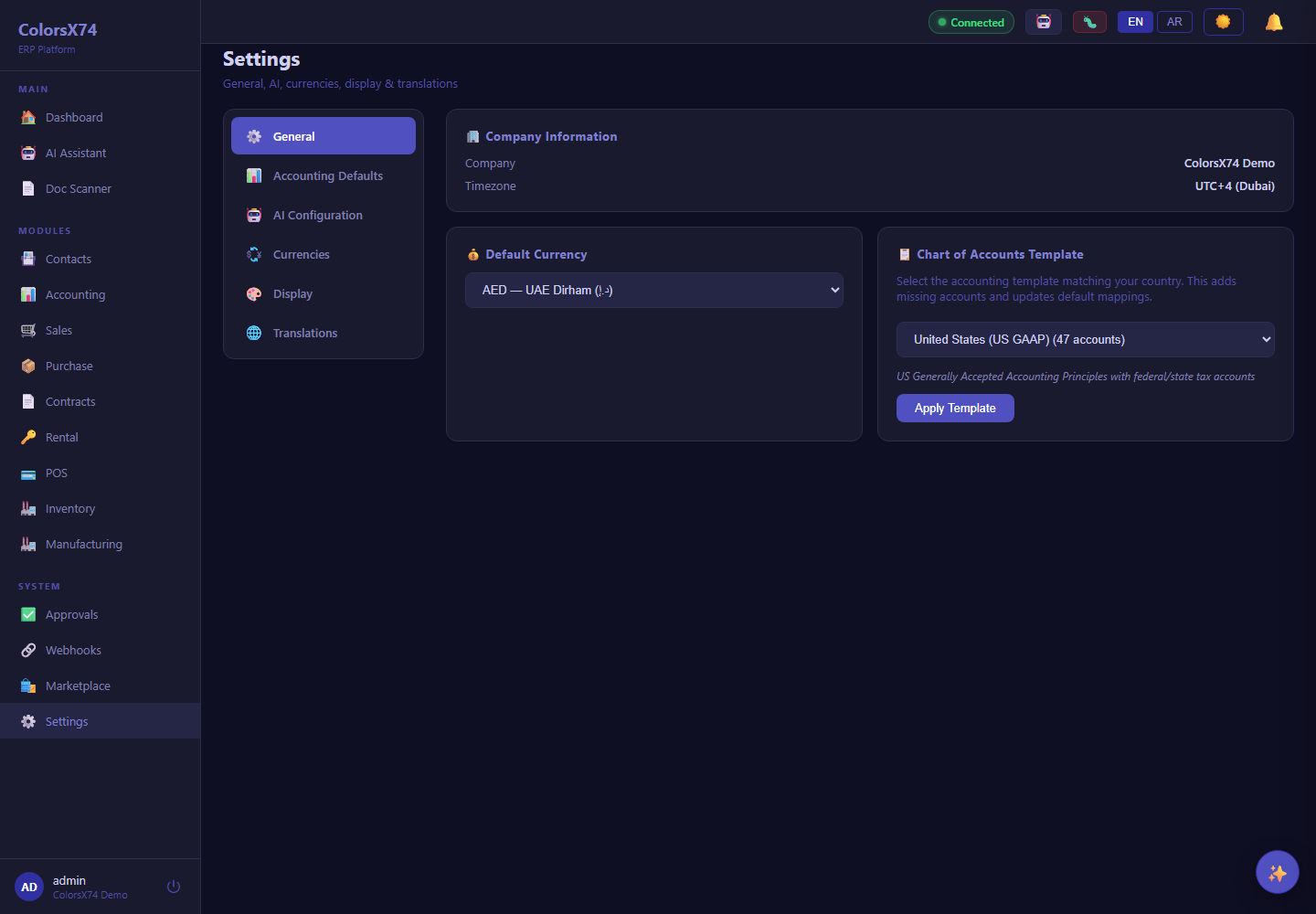
Use settings to confirm configuration area access.
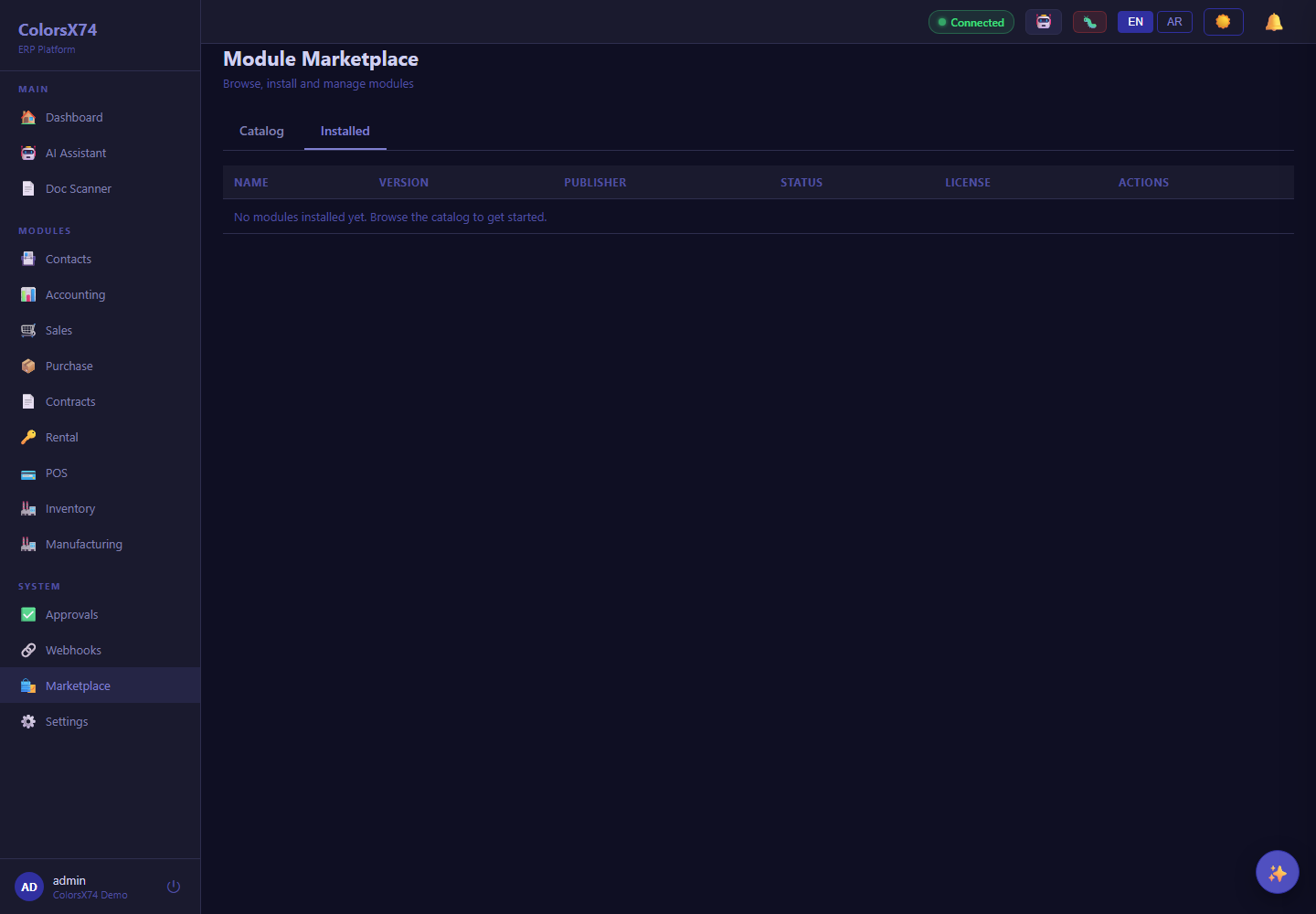
Use installed modules to explain add-on availability.